지난번에 vncserver에 연결하면 덩그러니 빈 화면이 나온다. 따라서, 이어서 vncserver의 데스크탑을 설정하였다.
일단 결과 먼저.
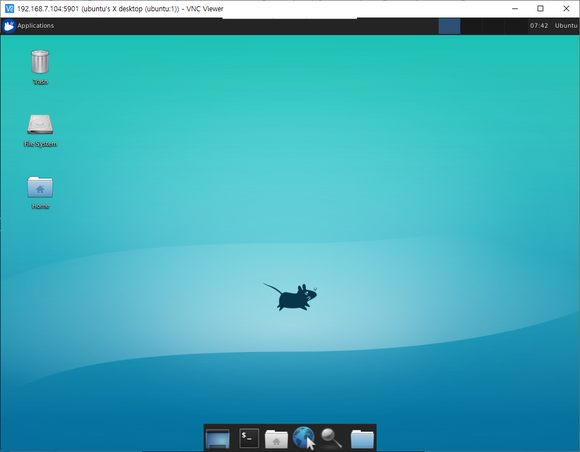
결과가 아주 마음에 든다.
설정 순서는 다른 데서 복사한 후에 일부 내용을 추가하거나 수정하였다.
1단계 – 시스템 업데이트
시스템 레포지코리를 업데이트 한 후에, apt 명령을 이용하여 시스템을 업그레이드 한다.
|
sudo apt update sudo apt upgrade |
원본에서는 vncserver를 위한 사용자를 생성하지만 우리는 그냥 ubuntu 사용자를 사용하자.
|
|
|
|
|
|
2단계 – XFCE Desktop과 TightVNC 설치
리눅스는 Gnome, Unity, KDE, LXDE, XFCE 등의 데스크탑을 제공한다. 이번 설명에서는 XFCE 데스크탑을 우리의 VNC 데스크탑 환경으로 사용하자.XFCE 데스크탑과 필요사항을 아래의 apt 명령으로 설치한다.
|
sudo apt install xfce4 xfce4-goodies |
XFCE 데스크탑을 설치한 후에는 ‘tightvncserver’ 패키지를 설치한다..
아래 apt 명령을 실행시키자. tightvncserver를 이미 설치했다면 이 단계는 지나쳐도 된다. 어차피 이미 "설치 되었음." 하고 지나가기는 한다.
|
sudo apt install -y tightvncserver |
The XFCE Desktop and tightvncserver have been installed on the Ubuntu 16.04 server.
Step 3 – Initial VNC Configuration
In this step, we will generate the VNC configuration for the ‘edward’ user.
Login as ‘edward’
|
su – edward |
Now initiate the vnc configuration for ‘edward’ user with command below.
|
vncserver |
You will be asked for the VNC server password – type your password. And for the ‘view-only’ password, you can enable or disable it. The user who logins to the server using the ‘view-only’ password will not be able to control the mouse and keyboard.
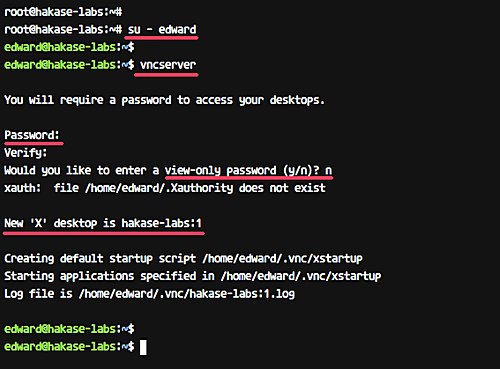
The first time we run the ‘vncserver’ command, it will automatically create new configuration directory ‘.vnc’ and run the first VNC session.
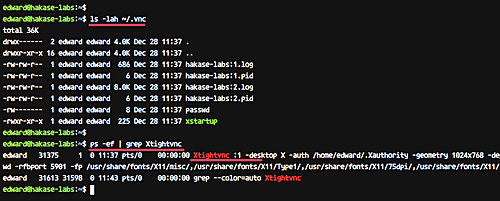
Check it using the command below.
|
ls -lah ~/.vnc/ ps -ef | grep Xtightvnc |
And you will get the result as shown below.
Step 4 – Configure TightVNC
In this step, we will configure the VNC server for using the XFCE desktop. We will edit the VNC configuration file ‘xstartup’ under ‘.vnc’ directory.
Before we edit the configuration, kill the first VNC session using the command below.
|
vncserver -kill :1 |
Now backup the default configuration and create a new one using vim.
|
mv ~/.vnc/xstartup ~/.vnc/xstartup.bekup vim ~/.vnc/xstartup |
Paste the following configuration there.
|
#!/bin/bash xrdb $HOME/.Xresources startxfce4 & |
Save and exit.
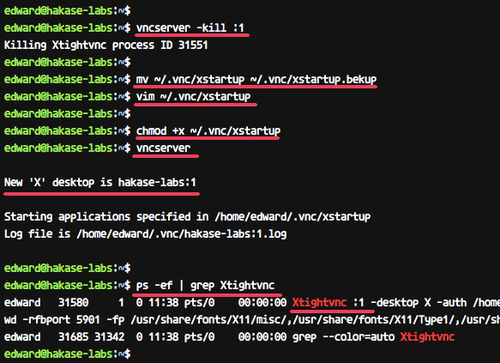
Now make the script executable using chmod and run again the ‘vncserver’ command.
|
chmod +x ~/.vnc/xstartup vncserver |
Check the session list.
|
ps -ef | grep Xtightvnc |
And you will get the result as below.
Step 5 – Running TightVNC as a Service
In this tutorial, we will run the VNC server as a service. So we need to create a new service file for it.
Go to the ‘/etc/systemd/system’ directory and create a new service file ‘vncserver@.service’.
|
cd /etc/systemd/system vim vncserver@.service |
Paste the following vnc service script there.
|
[Unit] Description=Remote desktop service (VNC) After=syslog.target network.target [Service] Type=forking User=ubuntu PIDFile=/home/edward/.vnc/%H:1.pid ExecStartPre=-/usr/bin/vncserver -kill :1 > /dev/null 2>&1 ExecStart=/usr/bin/vncserver -depth 24 -geometry 1280x800 :1 ExecStop=/usr/bin/vncserver -kill :1 [Install] WantedBy=multi-user.target |
Save the file and exit the editor.
Now reload the systemd services and start the VNC server service.
|
systemctl daemon-reload systemctl start vncserver.service |
Assuming everything goes error-free, add the service to the boot time and check the service status using systemctl.
|
systemctl enable vncserver.service systemctl status vncserver.service |
이런 출력이 나온다.
ubuntu@ubuntu:~$ sudo systemctl status vncserver.service
● vncserver.service - Remote desktop service (VNC)
Loaded: loaded (/etc/systemd/system/vncserver.service; enabled; vendor preset
Active: active (running) since Thu 2019-09-26 01:32:01 UTC; 32min ago
Process: 1307 ExecStart=/usr/bin/vncserver -depth 24 -geometry 1280x800 :1 (co
Process: 1267 ExecStartPre=/usr/bin/vncserver -kill :1 > /dev/null 2>&1 (code=
Main PID: 1332 (Xtightvnc)
Tasks: 58 (limit: 1056)
CGroup: /system.slice/vncserver.service
tq1332 Xtightvnc :1 -desktop X -auth /home/ubuntu/.Xauthority -geomet
tq1358 /bin/sh /etc/xdg/xfce4/xinitrc -- /etc/X11/xinit/xserverrc
tq1371 xfce4-session
tq1375 /usr/bin/dbus-launch --sh-syntax --exit-with-session xfce4-ses
tq1376 /usr/bin/dbus-daemon --syslog --fork --print-pid 5 --print-add
tq1380 /usr/lib/aarch64-linux-gnu/xfce4/xfconf/xfconfd
tq1385 /usr/bin/ssh-agent -s
tq1387 /usr/bin/gpg-agent --sh --daemon --write-env-file /home/ubuntu
tq1389 xfwm4
tq1393 xfce4-panel
tq1395 Thunar --daemon
tq1397 xfdesktop
tq1399 xscreensaver -no-splash
tq1414 xfsettingsd
tq1419 xfce4-power-manager
The VNC server is installed, and the first session is now running under ‘edward’ user.
Step 6 – SSH Tunnel
을 통해서 VNC Server 연결
이 작업은 하지 않았다. 그래서 그냥 남겨둠..
|
ssh -L 5901:127.0.0.1:5901 -N -f -l edward 192.168.33.10 |
Type your SSH login password.
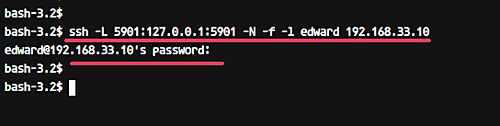
The command will create the tunnel between your localhost and the VNC server. The port 5901 on localhost will be forwarded to the VNC server ‘192.168.33.10’ on port 5901.
Now open your ‘vnc viewer’ application, create a new connection, and type the VNC server address with the 127.0.0.1 localhost IP and port 5901 as below.
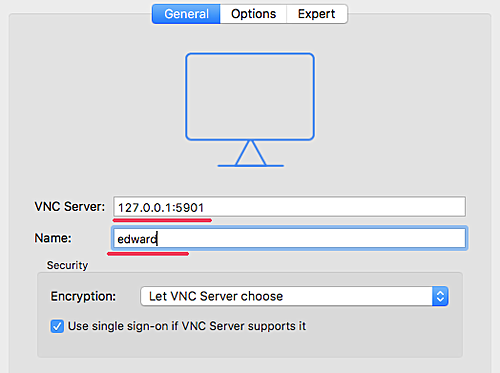
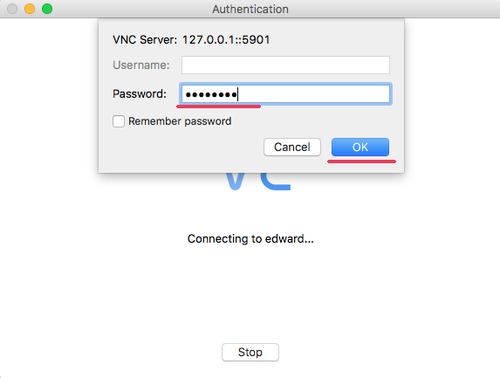
Connect to the VNC server and you will be asked for the VNC server password. Type your password and click ‘OK’.
Now you will get the XFCE desktop from your server.
Click the ‘use default config’ button for the first time, and you will get the XFCE desktop with default configuration.
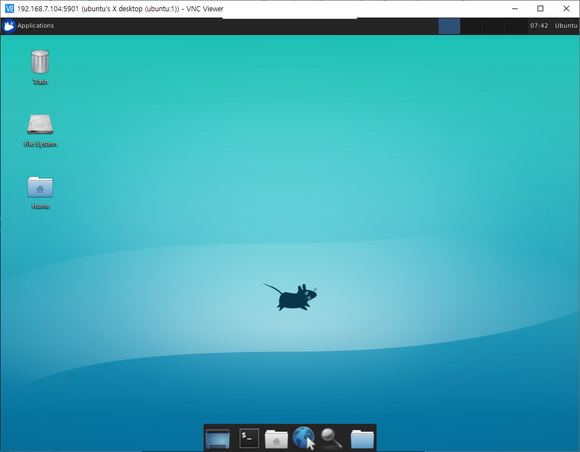
TightVNC를 이용해서 Ubuntu 18.04에 VNC server를 성공리에 설치하였다.
출처는 이곳이다.:
https://vitux.com/ubuntu-vnc-server/
How to Install and Configure VNC Server on Ubuntu 16.04 LTS
VNC or Virtual Network Computing is a graphical desktop sharing tool that allows you to control a computer (server) remotely from another computer (client). A VNC server transmits all keyboard and mouse events from the client computer to the server
vitux.com
'실전 임베디드' 카테고리의 다른 글
| NEMA14 JK36HM12-0504 스텝모터 결선 안내 (0) | 2019.10.05 |
|---|---|
| Raspberry pi Ubuntu MT7601 WiFi (0) | 2019.10.05 |
| Raspberry Pi vsftpd 오류 확인 (0) | 2019.10.05 |
| Raspberry Pi 처음 설치 후 할 일 (0) | 2019.10.05 |
| 로지텍 마우스 중간(스크롤) 버튼 수리. (0) | 2019.10.05 |


